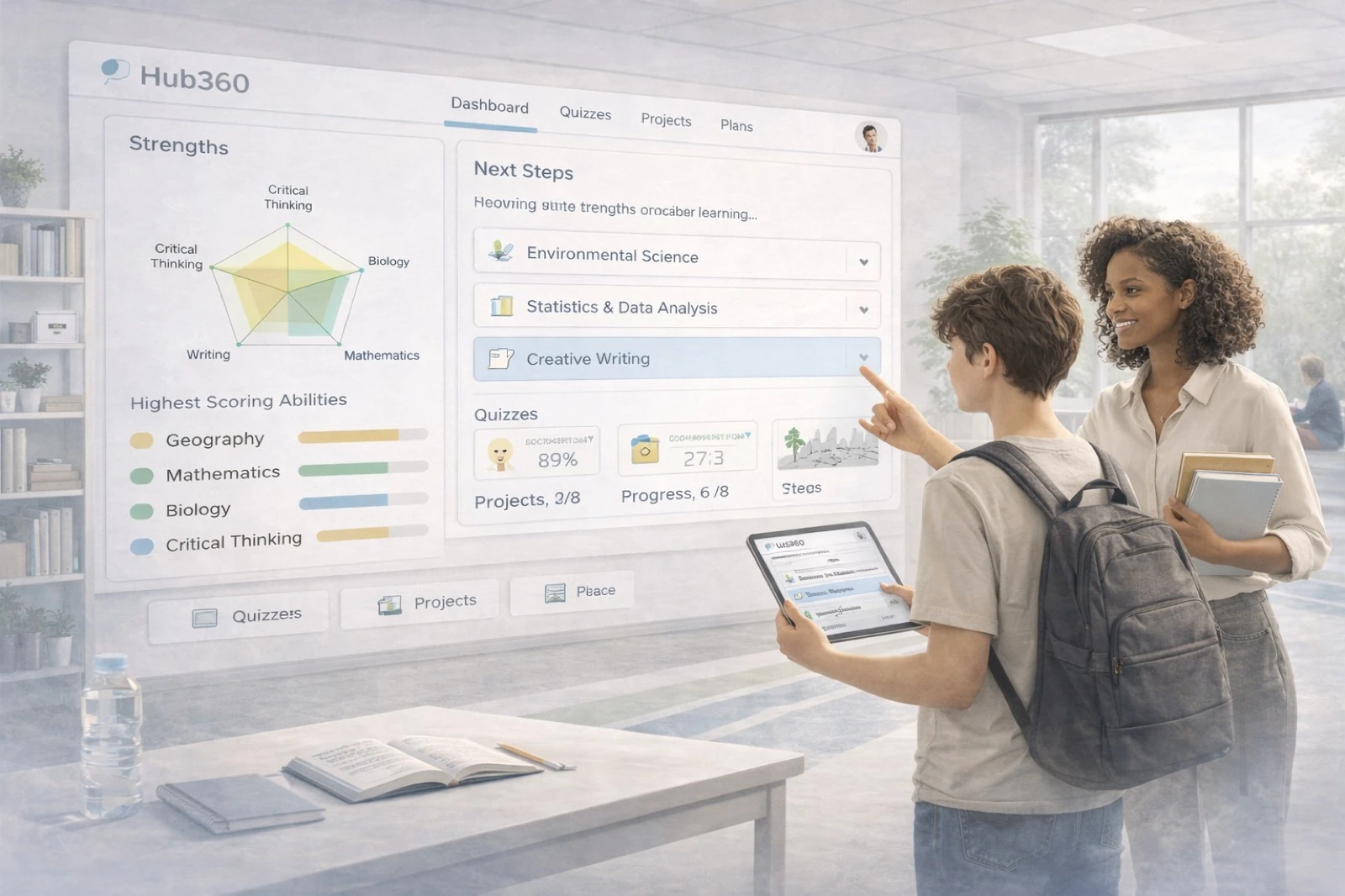
A teacher and student in front of the HUB 360 dashboard in a classroom, strength profiles, learning paths and next steps discussed together.

HUB 360, Swiss differentiator

Five perspectives. Three Swiss functions.

HUB 360 is not a dashboard. It is a continuous picture of every learner across five perspectives, and the foundation for three functions no imported system brings to Swiss classrooms.

  • Medical & Social
  • Pedagogical
  • Disciplinary
  • Career Pathways
  • Communication

Swiss function · 1

Auto-Zeugnis

HUB 360 drafts your student report from the year's data. You review, adjust, approve.

3–6 hours saved per class, per reporting period.
Swiss function · 2

Career counselling

Career interests and skill development tracked continuously. Counselling conversations grounded in actual data, not impressions.

From the school day, not from separate tests.

Swiss function · 3

Apprenticeship readiness

65 % of Swiss students enter an apprenticeship. HUB 360 makes strengths, interests and readiness visible, a structured path to apprenticeship search.

The Berufslehre as a national achievement, not a fallback.

Pedagogical approaches

How would you like to teach?

Ten established methods. You choose, ProScola follows. Each method structures the lesson its own way.

Select pedagogical approach

Hover or tap any method

Your method missing? Talk to us.

Learning Paths

Four ways to start creating a Learning Path.

A Learning Path is the structure behind your lesson, a sequence, not a pile. Four ways to build one: from the curriculum, from a topic, from a document, or with the AI assistant.
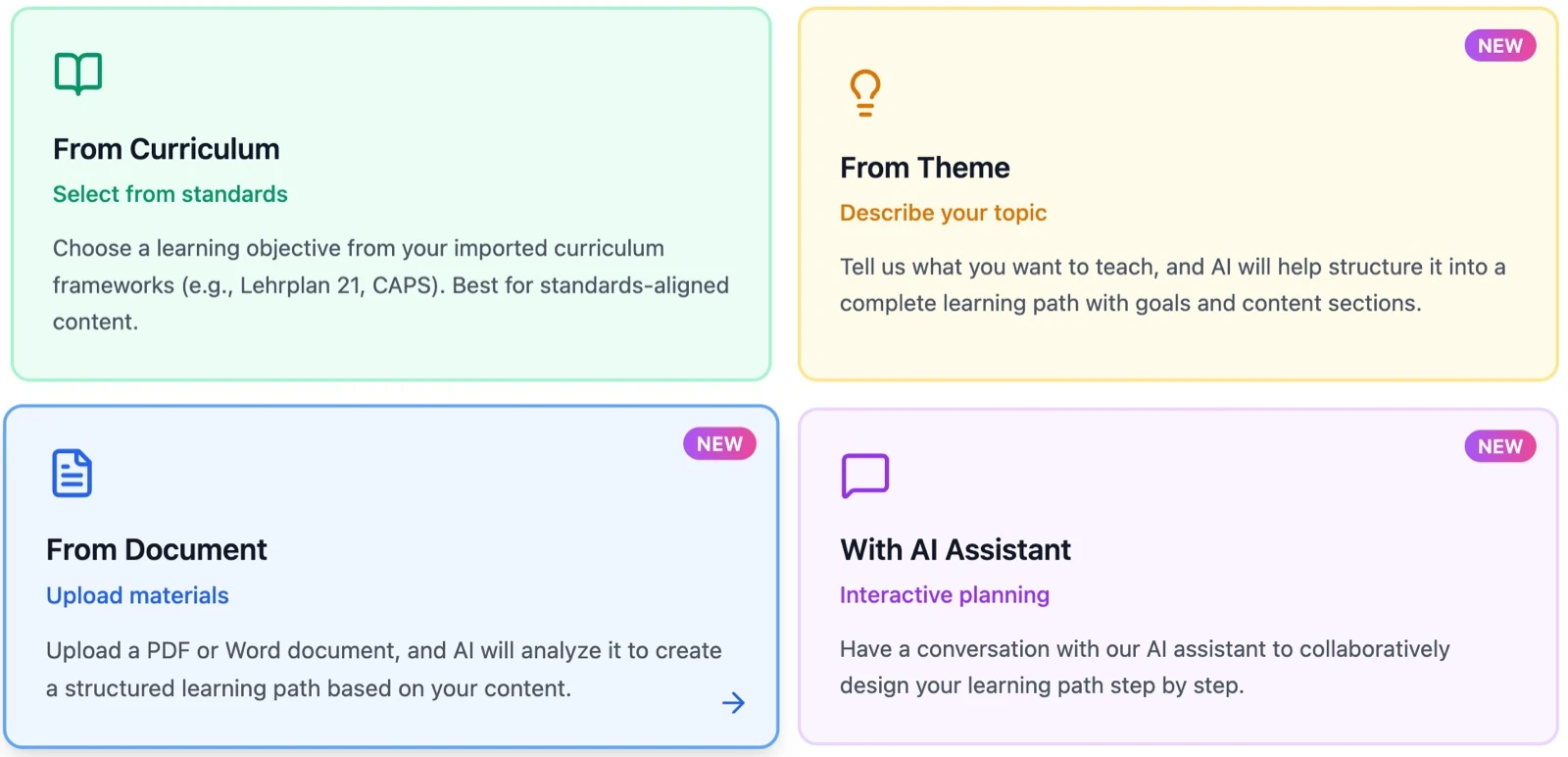
  • Generate from Lehrplan 21
  • Curate from a topic
  • Extract from a document (with page range)
  • Build through dialogue with the AI assistant
ProScola UI, four ways to plan a learning path as a card grid: From Curriculum (select from standards, e.g. Lehrplan 21), From Theme (describe your topic), From Document (upload materials), With AI Assistant (interactive planning).

Scolets

Activity types that grow with your teaching.

A Scolet is an activity card. Several Scolets form the Learning Path. More than a dozen types today, and the list grows when teachers ask it to.
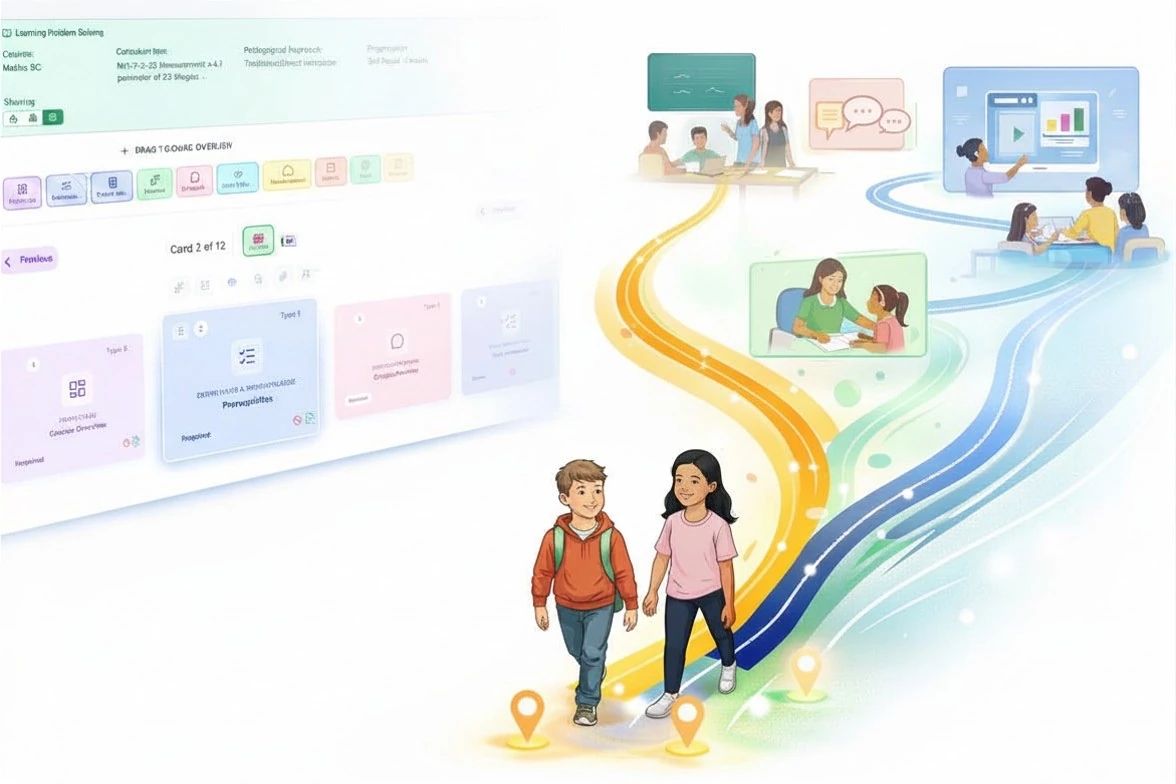
  • More than a dozen activity types, from Frontpage to Protocol
  • AI generation alongside manual editing
  • Attachments, links, multiple languages per Scolet
  • New types added on request from teachers
Illustrated learning journey: two students walking along colourful learning paths that branch into different teaching scenes, class discussion, one-on-one mentoring, on-screen presentation. On the left, the ProScola Learning Path overview with the Scolet cards.

The activity types, today

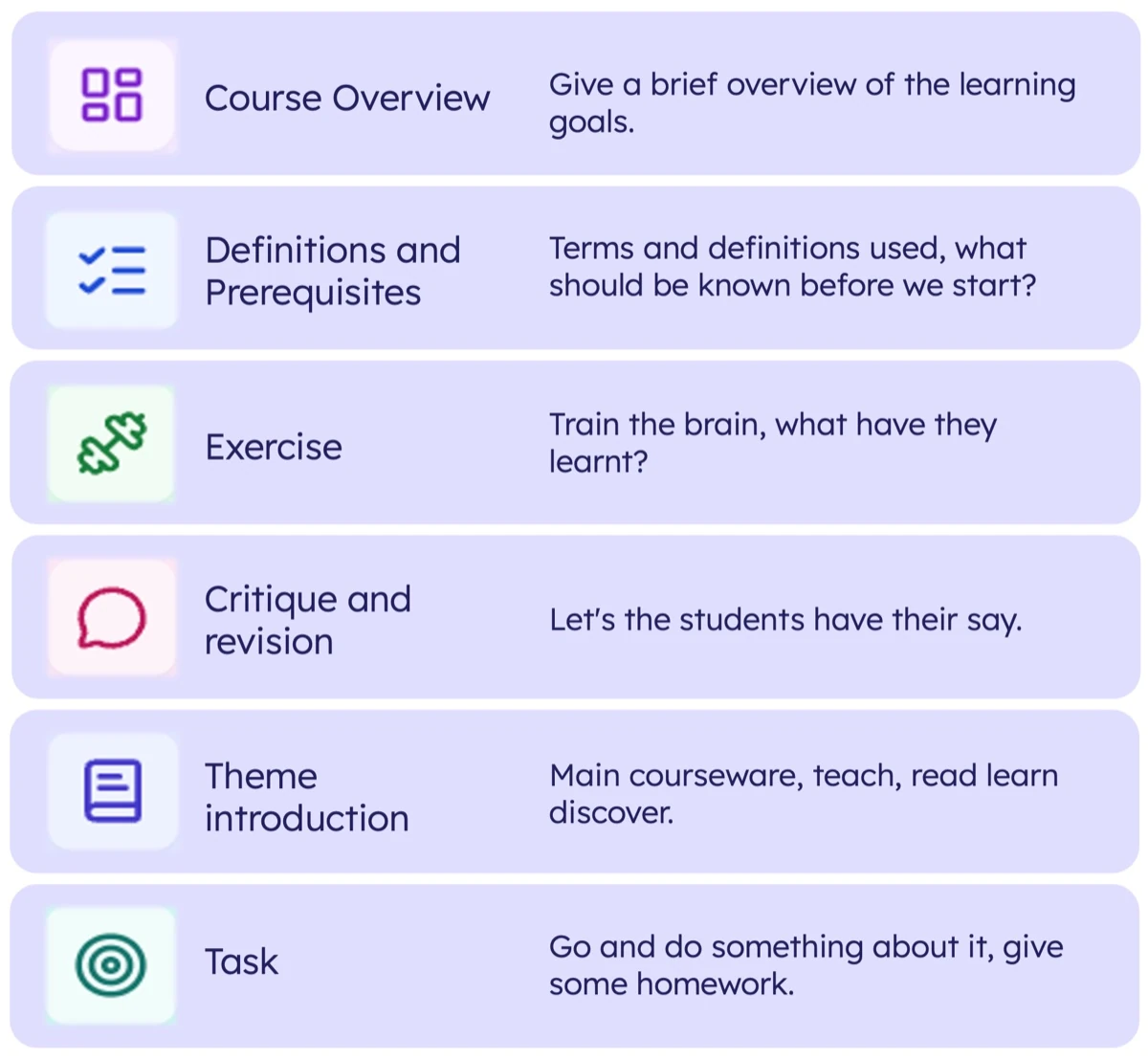
ScoLet activity types, column 1: Course Overview, Definitions and Prerequisites, Exercise, Critique and revision, Theme introduction, Task, each with icon and short description.
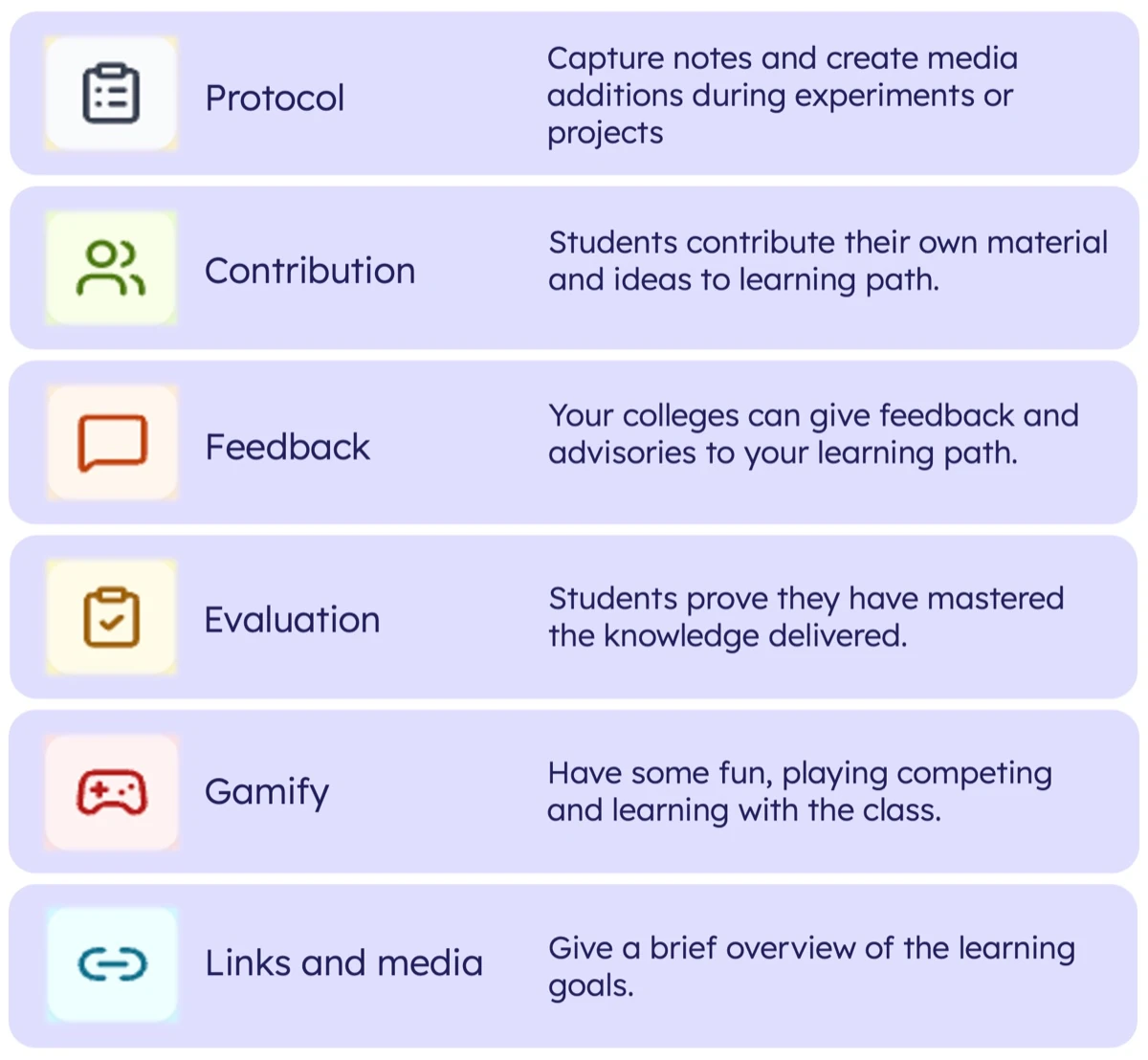
ScoLet activity types, column 2: Protocol, Contribution, Feedback, Evaluation, Gamify, Links and media, each with icon and short description.

More on the way

New types are added on request from teachers. Yours missing? Write to us.

Teachers Operation Center

The teacher's cockpit.

Like paper, just better.

The TOC brings your lessons, your classes, your marking and your overview into one place. Live in class. Structured in preparation.
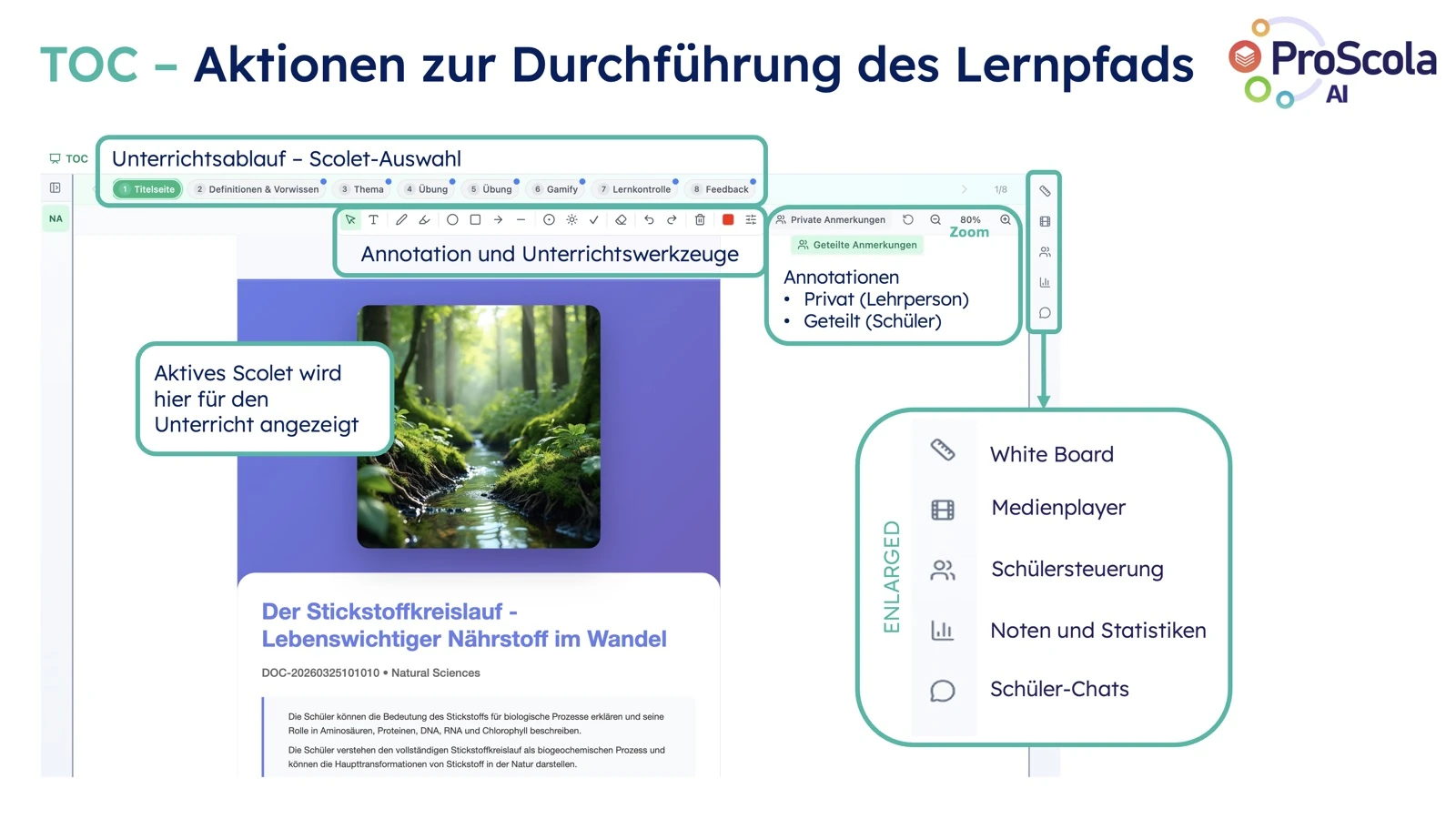
  • Early warning: see who is drifting toward apprenticeship search, before the report shows it
  • Live lesson flow through every Scolet
  • Smart Whiteboard with notes and math modes
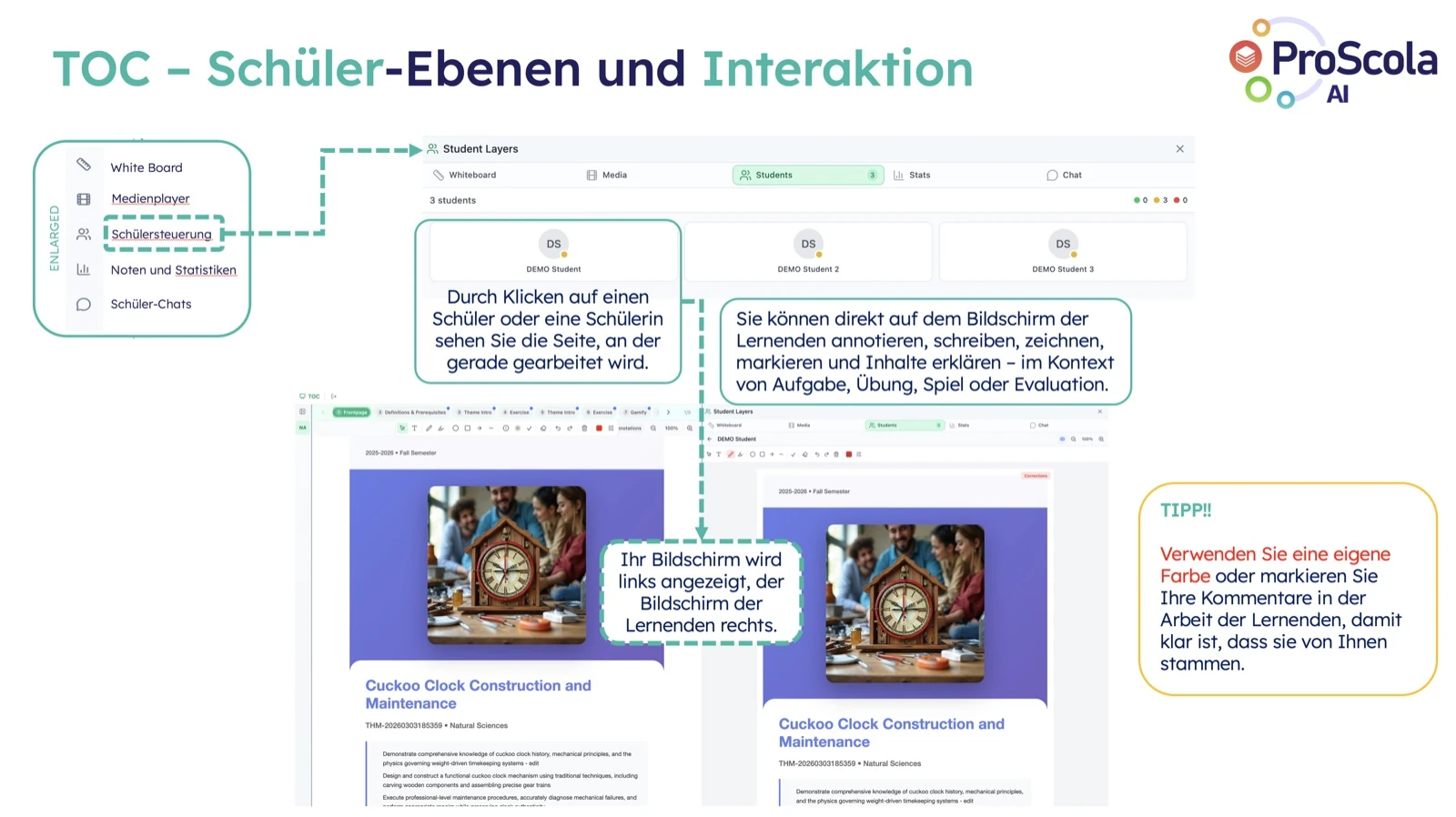
  • Student layer: step into a student's screen and annotate live
  • Shared or private annotations, you decide what the class sees
  • Marking, statistics and class chat integrated
Teachers Operation Center, active Scolet during a lesson with annotation tools, shared and private annotations, plus whiteboard, media player, student controls and class chat in the side menu. (German UI shown, English version coming.)
TOC, Student layers and interaction: teacher screen on the left, student screen on the right. The teacher can annotate, write, draw and explain directly on the learner's screen, in the context of a task, exercise or evaluation. (German UI shown, English version coming.)
Live student layer, annotate directly on the learner's screen, in the context of a task, exercise or evaluation.